Working with tasks
You can make a task from anywhere
- New task in the header, wherever you are.
- In List, every category section has a + in its header, which adds to the top of that section, and an Add task row at the bottom. The category you are looking at has a section of its own even before it holds anything, so there is always somewhere to put the first task.
- In the sidebar, a category's own menu has New task.
- In Calendar, when you hover a day you'll see a +. When you click it, you get a task due that date.
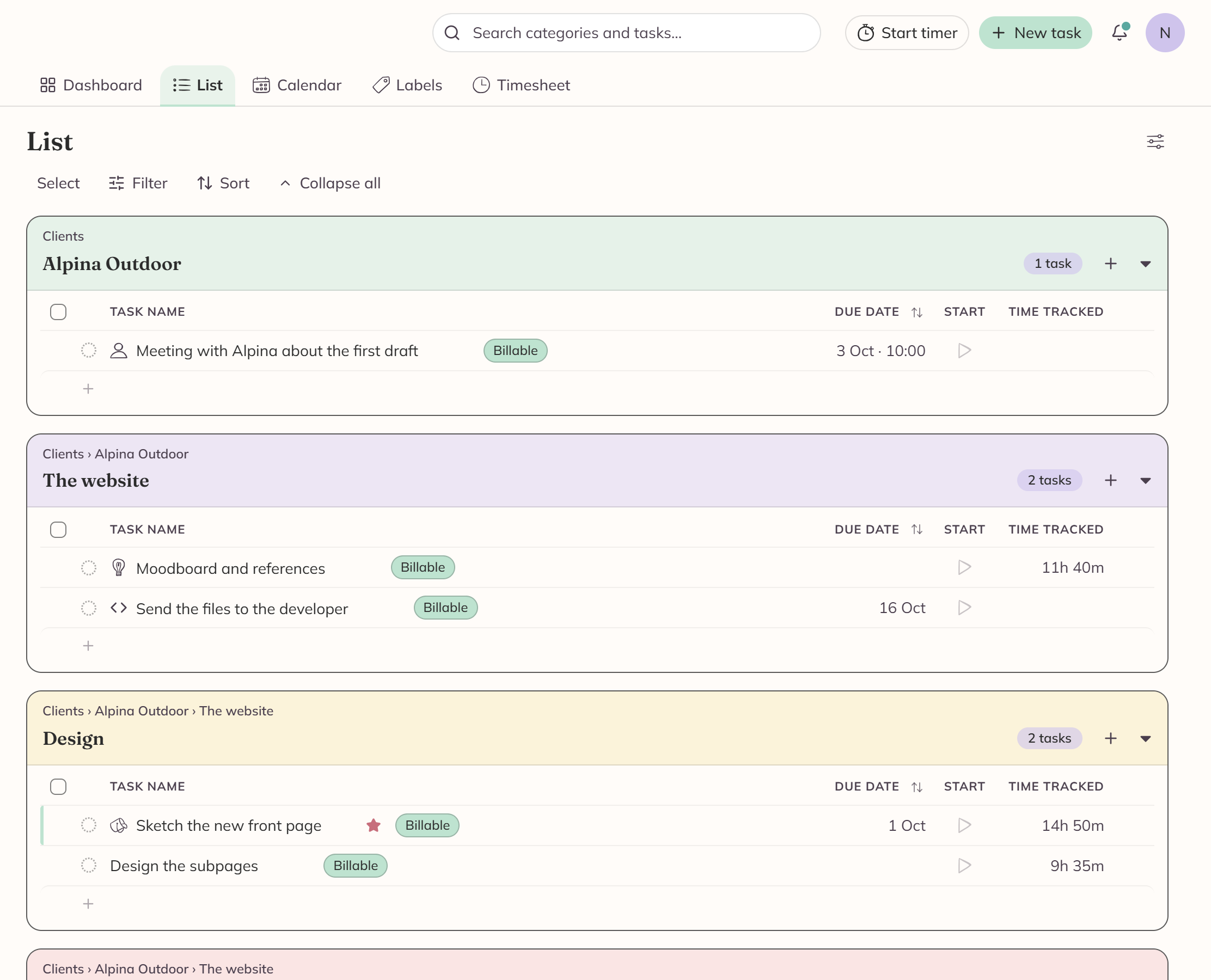
A task exists as soon as you give it a title, and everything you change after that saves itself.
If you change your mind, you'll find Discard draft at the bottom of the editor for a brand-new task, and Revert task for one you already had.
Paste a list and get one task per line
Have you copied a list of jobs from a document or an email? Paste it where a task name goes, and Nydli will ask whether you want one task per line. If you say yes, you get them all at once, in the category you were adding to.
Nydli takes off the bullets and the numbering, so - Call the accountant
becomes a task called Call the accountant. It skips blank lines as well.
If you ignore the question, nothing happens and you keep what you pasted.
The same offer appears in the Subtasks box, where the lines become subtasks instead. See Subtasks.
Take a list out again
It works the other way as well. Use Select to tick the tasks you want, and then press Ctrl+C or use Copy on the bulk bar.
You get one title per line on your clipboard, in the order the list shows them. Word and Google Docs take it as a bulleted list, and a chat box or a note gets the plain lines.
Nydli reads the same shape back, so you can copy a list out of one category and paste it into another as tasks.
Dates bring a task back to you later
A task can have a start date and a due date, and each of them can have a time of day as well. A time needs a date, so when you clear the date you clear its time too.
You'll see it in two places:
- The task appears on the Calendar.
- It shows up in the Dashboard's Today and Up next sections. Anything overdue is grouped in red at the top of Today.
You don't have to find the day in the calendar. You can type the date the way you'd write it anywhere else:
14.8.26,14/8and14 augall work.- If you type just
14, you get that day in the month you're looking at.
The calendar follows along while you write, and Enter sets the date. If you start typing while the calendar has the focus, what you type goes into the field, so you can open the picker and write straight away.
You set everything else in the editor
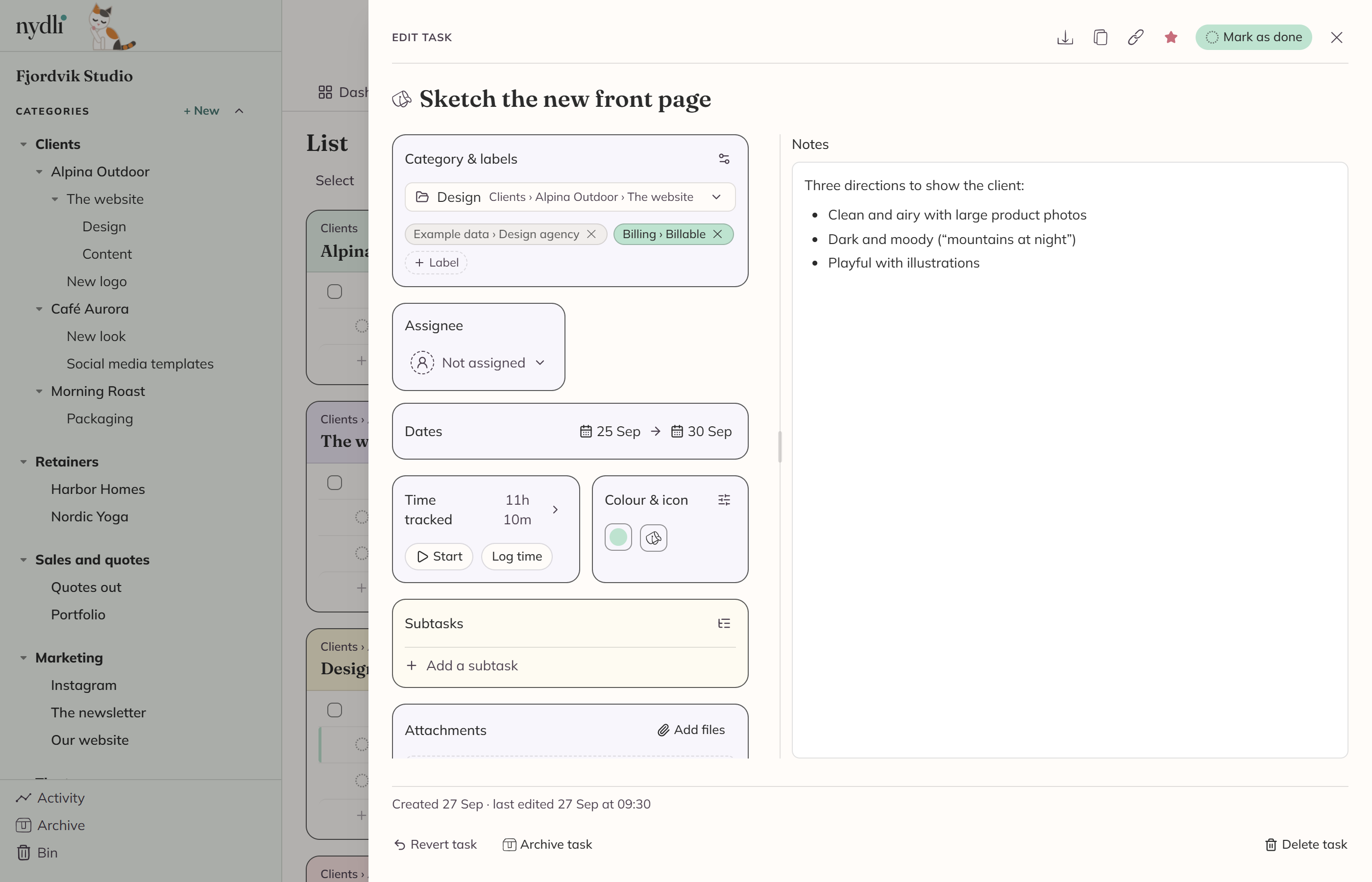
Down the left-hand side you get one box for each thing you can set, and the notes take the rest of the panel.
Along the top you'll find Download, Duplicate and Copy link, plus the favourite star and Mark as done. At the bottom you get the three ways out of a task.
On a phone the same editor has a shape of its own. The fields are chips and the notes are underneath them. See Nydli on a phone.
When you use Duplicate, Nydli asks what should come with the copy before it makes one. Every part of the task is a tick-box, from the notes to the attachments, and Nydli can remember your answer for next time.
The copy goes in the same category with (copy) after its name. Each file is copied as well, so the copies count towards your storage.
Colour a task so you can find it fast
You can give a task any colour and any icon you like. The icons come from the icon library, or you can use an emoji.
In List, on the Dashboard and on a label's own page, you'll see the colour as a stripe down the front edge of the row. On the calendars the whole chip takes the colour.
The row of colours and icons you're offered is your own, and you can change it. See Colours and icons.
You can put more than text in the notes
The notes start out as something to read. When you click them, or tab to them and press Enter, you get a proper writing field. You get formatting and checklists, and code blocks come out highlighted. There's a raw-Markdown mode as well, behind the MD button in the toolbar.
When you click anywhere else in the task, the field goes back to being something you read. Nothing is lost when that happens, because every keystroke saves as you type.
- Images: paste, drag in, or use the image button. You can pick how big each one shows. Images count towards the storage of the account that owns the workspace.
- Files: attach files of any type in the Attachments section at the bottom of the editor. Click to download. You have to be signed in to the workspace to download one, and attachment links are never public.
- Task references: type
@to link another task by name. - Checklists: tick-boxes for the loose steps in your head. A step that needs its own date, person or hours belongs in Subtasks instead.
- Video links: a YouTube, Vimeo or Loom link on its own line becomes a click-to-play player. Your browser never contacts the video host until you press play, so opening a task doesn't tell anyone what you're looking at. The preview picture on the player is a copy Nydli fetches once you save the notes, and it counts towards the account's storage as well.
You can change small things without opening the task
From a List row you can rename a task, change its due date or mark it done. The star, the timer and Archive are on the row as well.
If you have a whole pile to deal with, use Select to turn on the checkboxes. A bar appears along the bottom, and from there you can Move, Copy, Duplicate, Mark as done, Mark as not done, Archive or Delete everything you ticked.
Drag a task to move it somewhere else
You can drag a row onto a category in the sidebar, or onto another section's card in List, and the task moves there. The whole card is a target, so an empty section is just as easy to hit as a full one.
If you tick several rows first, they all move at once. Nydli tells you what moved and where, and offers you an undo that puts each one back where it came from.
The Move button on the bulk bar does the same thing from a picker. That's easier when the category you want is somewhere else in the tree.
Set … on the same bar changes one field on all of them at once, whether that's a date, an assignee or a label. Before it overwrites anything, it tells you how many of them already have something there. It warns you about a tree that takes one label per task as well, because setting the label there replaces the one a task already has.
Save one task as a file
The Download menu at the top of the editor saves the task as a PDF, Markdown, plain text or JSON. Send a client the PDF, or keep it for your records.
Your attachments are named in the file, with their size, but they're not bundled into it.
You choose which columns you see
The control at the right of the List title turns columns on and off. You can show or hide Due date, Assigned, Start (the timer) and Time tracked. The same menu turns the indented subtask rows off. This is your own choice, and Nydli remembers it.
You only get the columns that can tell you something. The two time columns disappear when time tracking is off for the workspace, and Assigned shows up once there's somebody else in the workspace to assign things to.
Sort each list the way you want it
Use the Sort button in List. You can sort by:
- Your own manual order, dragging tasks or using the arrow keys on a row's handle
- Name, A to Z
- Due date, start date or created date
- Tracked time
- Colour
Nydli saves your choice for each list. You can also click a column heading to sort by that column, and click it again to turn the order round.
You have three ways out of a task
Mark as done, Archive and Delete do different things, and which one you pick matters for your timesheet. See Done, archive or delete?