Recurring tasks
Some work repeats. The rent goes out on the first of the month, and the invoices run every second Friday.
A recurring task is one task that repeats on a pattern you set. You write it once, and then it keeps showing up.
You set one up from the due date
Open a task, click its due date, and choose Set repeat at the bottom of the date picker. When the task already repeats, the same row says Edit repeat and takes you back to the rule.
You can choose from these patterns:
- Daily
- Weekly
- Monthly
- Yearly
- A custom interval, like every 14 days
Under the panel there's a sentence that spells out what you've chosen, so you can read it back before you close it.
Monthly works in two ways, and it's worth knowing the difference:
- The 15th of every month keeps the date.
- The third Thursday of every month keeps the weekday, which is what most meetings actually mean.
If you pick a date that some months don't have, like the 31st, those months use their last day instead.
You choose what happens when you tick it off
You pick between them under When it's done.
Move the due date forward
Nydli does this unless you say otherwise. The task you ticked stays ticked, and its due date moves on to the next one in the pattern. You keep one task and one row, however many years it runs for.
Pick this for a list you work through and come back to, like the subscriptions you renew every autumn. You tick them off as you go, and next year you can open them all again from the top of the subtasks box, with the dates already right.
Create a new task
This closes the task you ticked and makes the next one beside it.
Pick this when you log hours on the job, because otherwise the timesheet can't tell you that January's bookkeeping took four hours and February's took six. If you keep one task rolling forward instead, every hour you ever logged ends up on the same row.
Either way, nothing moves until you tick it off
A date going past does nothing on its own. If you never finish the task, you end up with one overdue task.
We could have filled your list with twelve identical rows instead, but then you wouldn't be able to see that nobody has done the job since March.
An overdue task doesn't change the next due date
Nydli works out the next date from the due date, not from the day you ticked the task off. So if your invoices are due on the 1st of the month, and you do August's on 2 September, the next one is still due on 1 October.
If it worked the other way round, one overdue task would make every one after it late as well.
Days after done counts from the day you tick it off instead, and we put it there on purpose. Pick it when the gap matters more than the date, like watering the plants four days after you last watered them.
You don't get the ones you missed
If you ignore a daily task for three weeks and then finish it, you move on one step, to the next one still ahead of you.
We don't give you the twenty-one you missed.
You can stop it after a count, or on a date
Under Ends you can:
- Leave it running forever
- Stop it after a count you choose
- Stop it on a date
If you choose After 4 times, the fourth one is the last, and the line under the calendar says it stops after 4 times. When you tick that one off, nothing follows it. The date stops moving, and the task stays where it is, finished, like any other.
To stop one early, click its due date and choose Stop repeating, right under Edit repeat. When you have the recurrence panel open, it's at the bottom of the panel instead.
If you remove the due date, the repeat goes with it, because a repeat is counted from the date. The button at the bottom of the date picker says Clear date and repeat when that's what it will do. The cross beside the date takes both off as well, and Undo puts both back.
Stopping never changes the task itself. It stays where it is and keeps its dates, and it just stops repeating.
You can see the ones still to come
Recurring tasks can show you the ones still to come in Calendar, as dashed outlines. The switch is in the recurrence panel and it works per task, so one daily routine doesn't have to fill your whole month.
If you want to hide all of them for a moment, untick Show upcoming repeats in the Calendar's filter. Each task keeps its own setting, so they come back when you tick it again.
Every repeating task has a small loop on it, in the List as well as the Calendar, so you can tell it apart from an ordinary task at a glance. When you hover it, it tells you the pattern.
We don't show the loop on the Dashboard. It's the view you look at to decide what to do next, so we keep those rows to a name and a date.
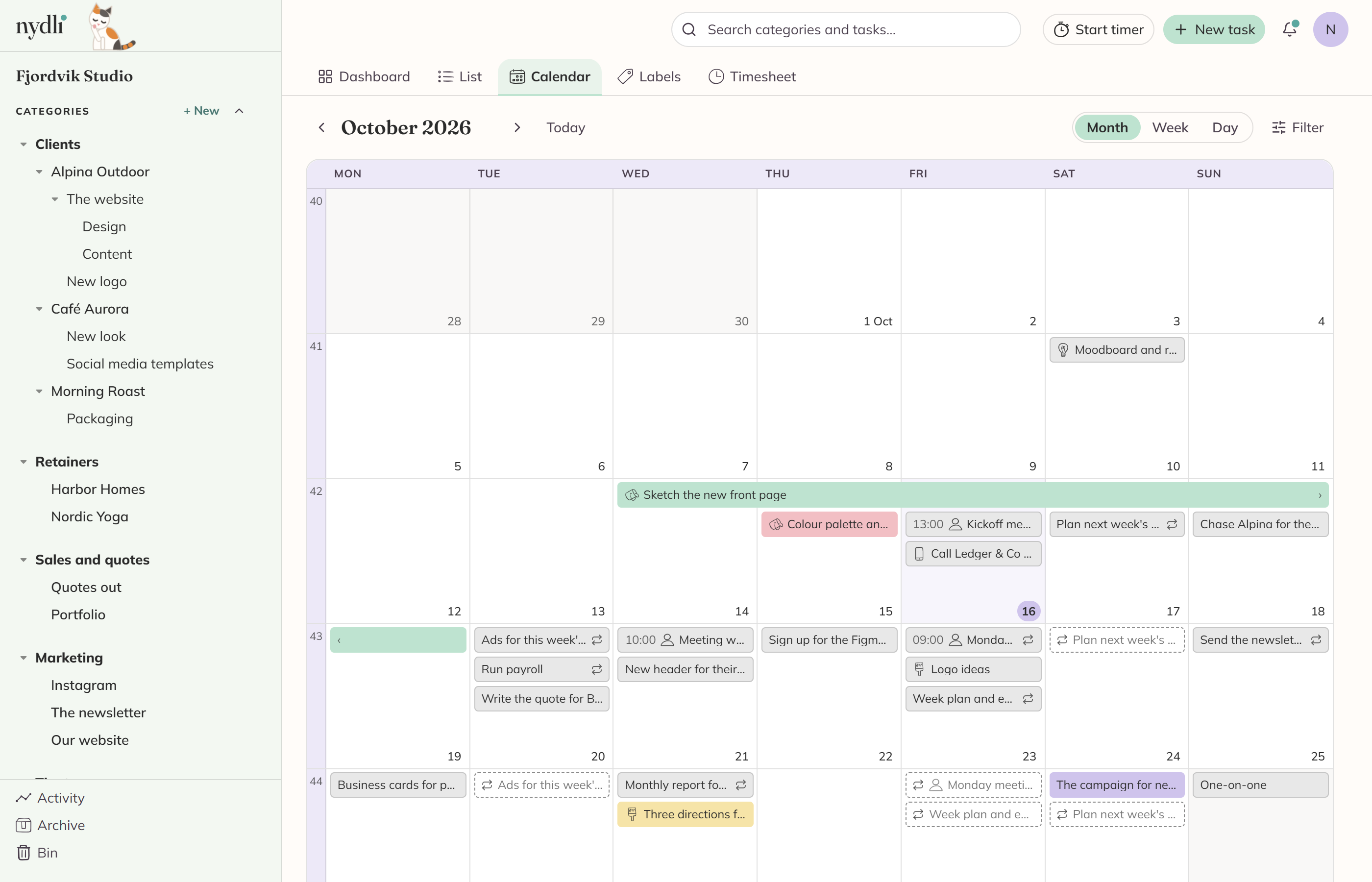
An outline is only drawn on the screen. Nydli works it out from the pattern each time, and it never stores it, so:
- It never counts on your timesheet.
- You can't drag it or tick it off, because the task doesn't exist yet.
When you click one, you get the real task the pattern belongs to.