Calendar
The Calendar shows you the same tasks as List, laid out by date. A task shows here as soon as it has a start date or a due date, or both.
If a task has no dates, it doesn't appear here at all.
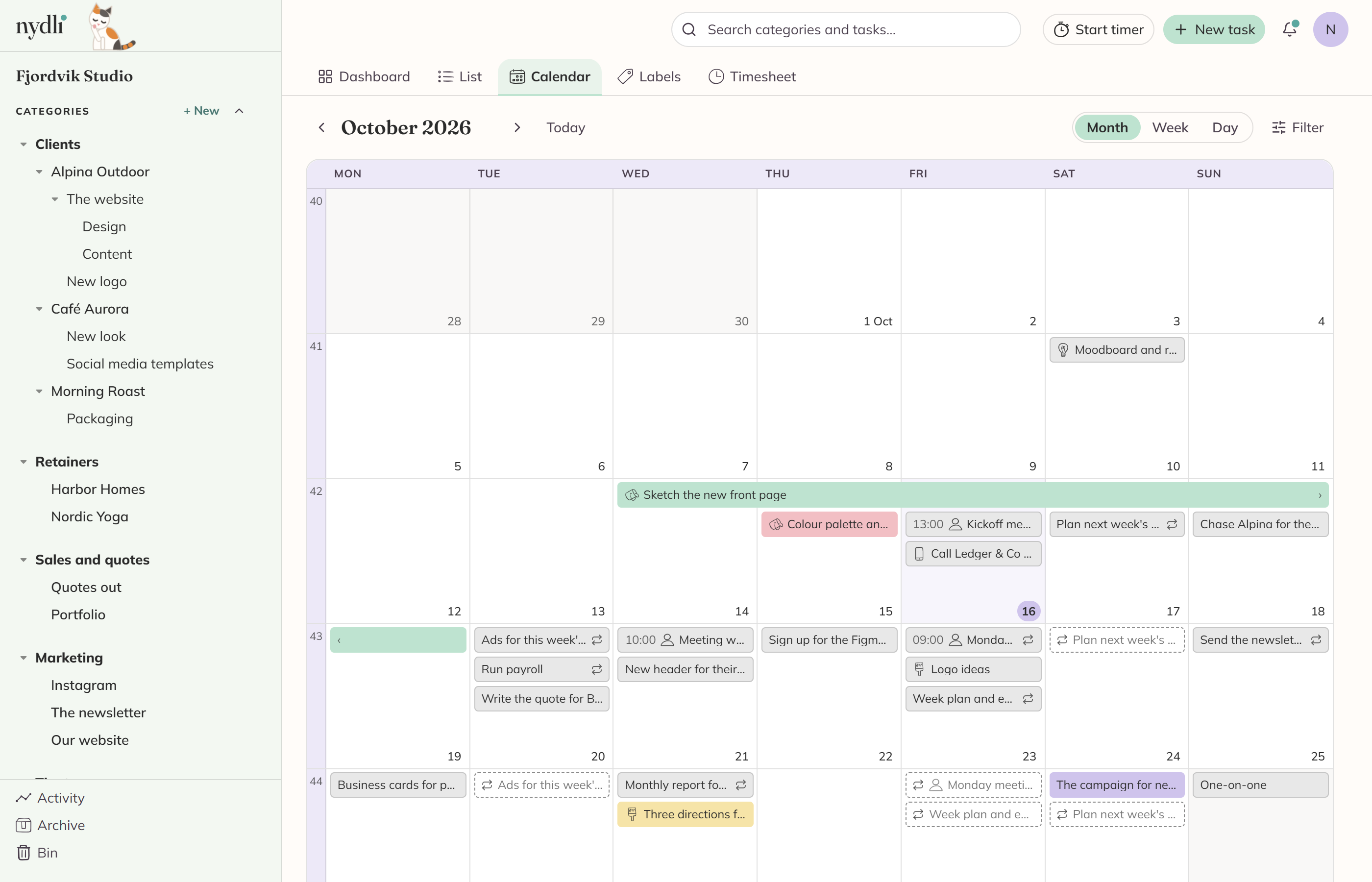
You switch between month, week and day
The buttons are at the top right. The arrows step one period at a time, and Today takes you back to now.
The period label, "September 2026", is a button as well. When you click it you get a year stepper and a grid of twelve months, so you can be on next April in two clicks.
Weeks start on the day you chose in Settings. In month and week view you'll see the week number down the left edge.
How a task shows up on the calendar
A task with both a start date and a due date runs across all the days in between. A task with only one date shows on that day. If you've given it a time of day, you'll see the time on it, and a task that runs over several days shows its start time on the first day and its end time on the last.
Within a day, the tasks that run over several days come first, then the ones with a time, earliest first, and the ones without a time last.
You can tick a task off with the circle in front of it, without opening it. Clicking the task itself opens it, and the menu on the right has renaming, deleting and everything else you can do to it.
In week and day view, timed tasks go on a clock
Along the top there's an All day row for the tasks with no time of day on them, and under it a clock for the ones that have. The All day row shows three tasks per day before it offers to show the rest.
A busy day shows four tasks, and the rest on one click
A day in the month view shows four tasks. If there are more, you'll see +3 more at the bottom of the day. Click that and you go to the week, where there's room for all of them.
A month can be taller than the screen, so you may need to scroll to see the last week.
Add a task straight onto a day
When you hover a day, you'll see a +. Click it, or click a half hour in the week or day clock, and a small panel opens beside it. The panel has a name, a category and the day you clicked.
Press Enter to save and close, or Escape to throw it away, and clicking outside does the same. If you want to carry on in the full editor, use Add details, and the name you've already typed comes with you.
Filter the same way you do in List
You can filter by label, by assignee, by favourites or by tasks with no due date. Show done tasks brings the finished ones back, and unticking Show upcoming repeats hides the repetitions that haven't happened yet. See Recurring tasks.
Your filter stays with you when you switch between List and Calendar, so you can look at the same set of tasks either way.