Getting started
You start by answering a few questions
Nydli asks them the first time you sign in, and they come in two steps.
The first step is the practical one. If the workspace is yours, Nydli asks what you want to call it. Then it asks for your language and your time zone, and how you want your dates written.
The second step is about how Nydli looks. You choose a theme and a style, and you say whether you want whimsical mode on.
You can change all of it later in Settings, so there's no need to agonise over any of it now.
What you'll see when you open it
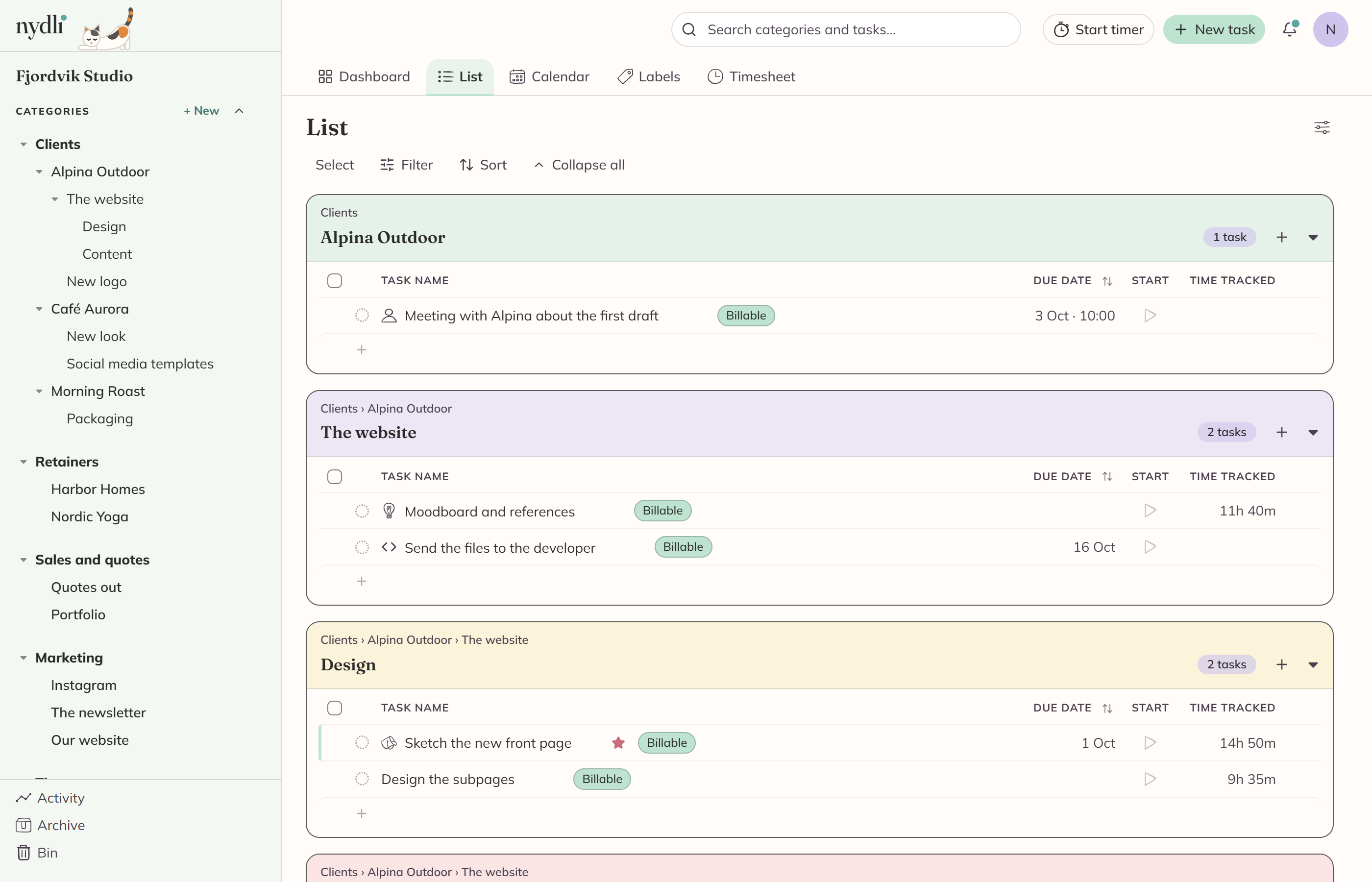
You sort your work into categories
Your categories are in the sidebar on the left. They work like folders for your work, and you can put categories inside other categories, as deep as you like.
Most people have one category per client, and then a category per project inside it. There's no right way to do it, so set it up however you like:
Fjordvik Bakery
├── Brand identity
└── Website
Internal
└── Admin
Make one with + New in the sidebar. Each category row has its own menu, and you can drag categories about to reorder or nest them.
See Categories for what happens when you move, copy or archive one.
You do the work in tasks
Click a category and add your first task. You can use the New task button in the header, or the add-task row at the bottom of the list.
The task opens in a panel next to your list. That is where you set everything about it, from the dates to the notes. There's no Save button anywhere. Everything saves as you type.
See Working with tasks for the rest of it.
Track your first hours
Open a task and start the timer. When you stop it, the time goes onto your timesheet under the task's category, and Nydli adds it up for you.
Already have your work somewhere else?
If you're coming from ClickUp, you don't have to type it all in again. Go to Settings → Data → Import from ClickUp, and Nydli imports your lists and tasks with the hours you logged on them.
You'll see exactly what it's going to create before it writes anything. See Import from ClickUp.
Fancy a poke around with something in it?
An empty app is hard to judge. When you use Settings → Templates, Nydli fills the workspace with a made-up small business, and it comes with a year of tracked time. Then you can see how Nydli looks with something in it.
Everything it adds gets an "Example data" label. You can clear it all out whenever you want, or you can keep the parts you like and clear the rest. See Templates.
You work in five views
| View | What it shows |
|---|---|
| Dashboard | Your favourites, tasks due today and what's up next. |
| List | Tasks in the selected category and everything under it. |
| Calendar | The same tasks laid out by date, as month, week or day. |
| Timesheet | Tracked time, grouped by category, for any period. |
| Labels | All your labels, with a count of how much each one is used. |