Searching
You'll find the search box in the app header, and it works in two steps.
On a phone you get a search icon in the header instead. When you tap it, the search field opens across the width of the screen.
Step 1: you get names as you type
From the first letter you type, Nydli looks for it in your category and task names. You get the results as you type, with the closest match first, so a name that starts with your text comes before one where it appears in the middle of a word.
Categories match on their full path, so when you type part of a parent's
name, you get the ones under it as well. If you search for some, you'll see
SoMe › Instagram.
You can pick a result with the mouse, or use the arrow keys and Enter.
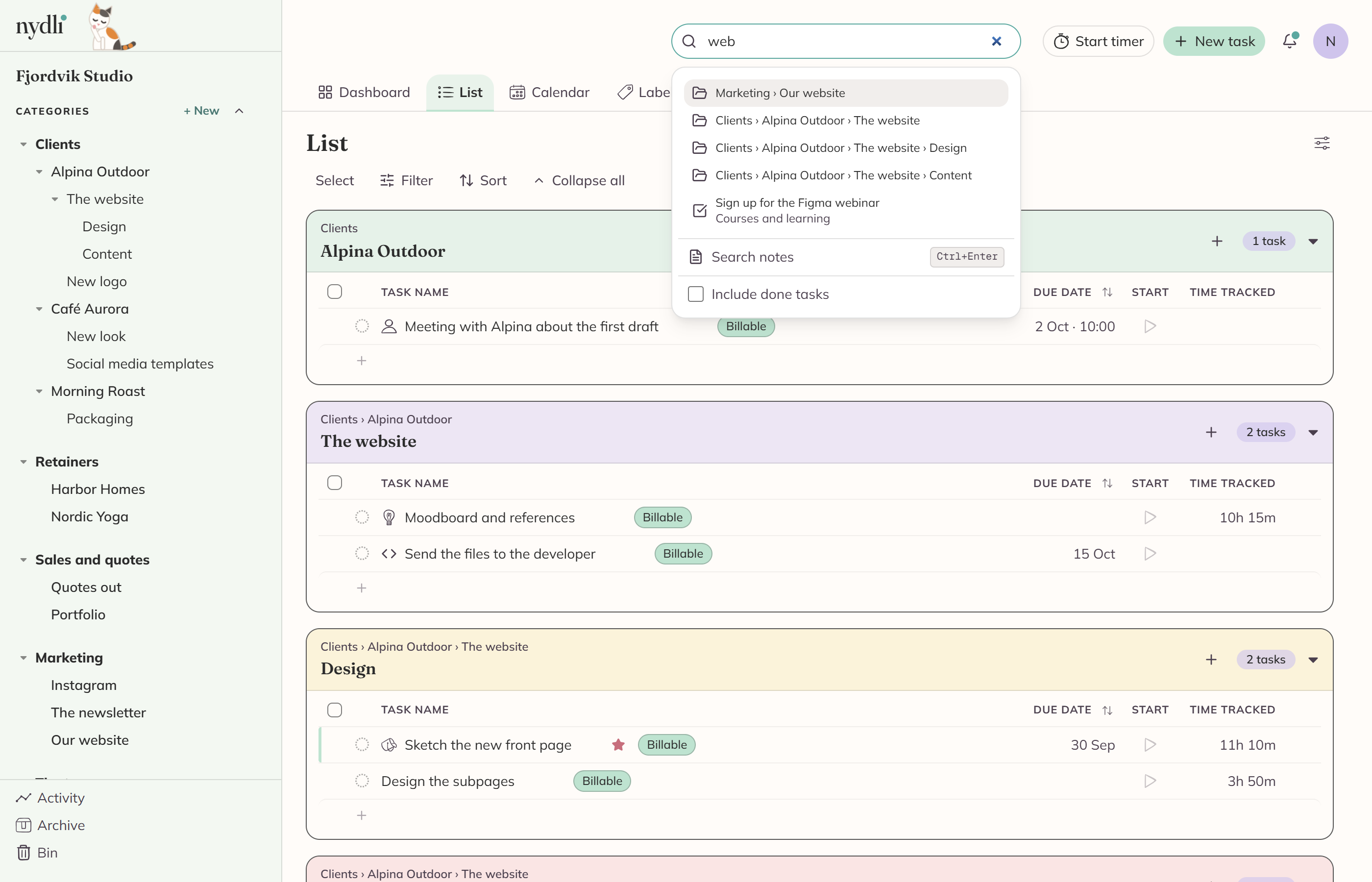
Step 2: you ask it to search the notes
Names aren't always where the words are. If the words you want are in a task's notes, click Search notes below the results, or press Ctrl+Enter. Nydli then searches the notes on every task in the workspace, and you get a snippet of where it found the match.
You ask for this step yourself, so the name results stay instant and the heavier search only runs when you want it.
If nothing matches at all, the box tells you so: Nothing at all, not even in the notes.
You can bring your done tasks into the results
Search leaves out the tasks you've marked done. If you tick Include done tasks, you get those as well, and every one of them has a Done badge.
The option works for the notes search too. When you turn it on, that search runs straight away, and it keeps up with what you type for as long as the box is ticked.
Archived tasks and categories never show in search, and that's on purpose. Archived work is meant to be out of the way. The Archive page is where you find it, and when you reactivate something, it comes back into search.
Tasks in the Bin don't appear in search either, so restore them first.