Dark mode and styles
Nydli has a dark mode, and it covers the whole app.
You set it in Settings → Appearance, and Nydli asks you on your first sign-in too. Everything there saves the moment you click it.
You pick Light, Dark, or whatever your device is doing
That last one is System, and it follows the device you're on. A laptop set to go dark in the evening takes Nydli with it.
Dark mode has colours of its own, made for a dark room. You'll see the pastels from the light theme again on the small things, like the chips and the line across the top of a box.
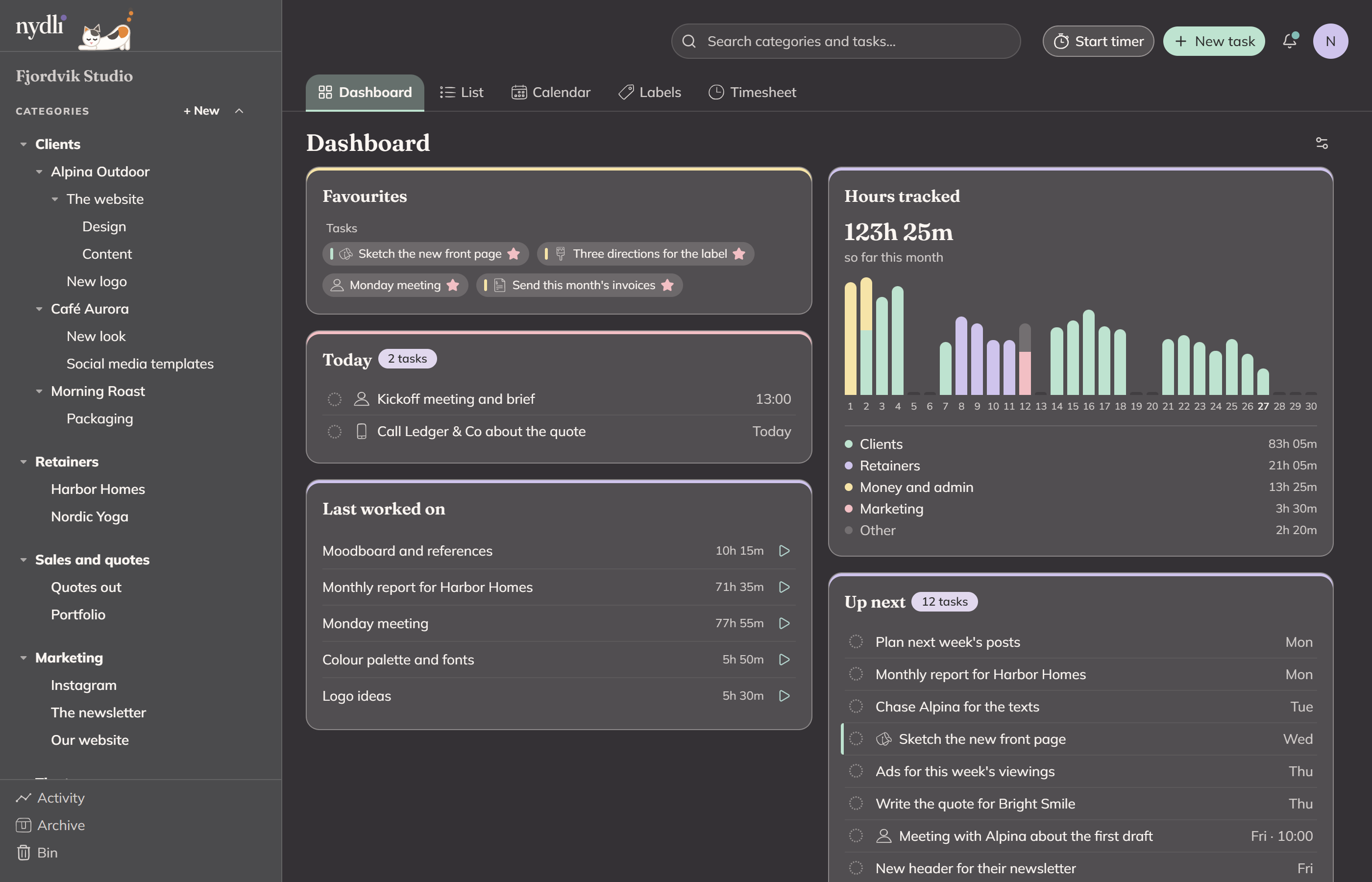
You set the theme per workspace, and new workspaces start with the theme from your account. So you can run one workspace dark and another light.
You can also change the style
There are two, and both work in both themes.
- Gelato puts pastel colour on the boxes. Each one carries its category's colour as a line across the top, on a warmer background.
- Classic keeps the surfaces plain, with colour only on the labels and the tasks themselves.
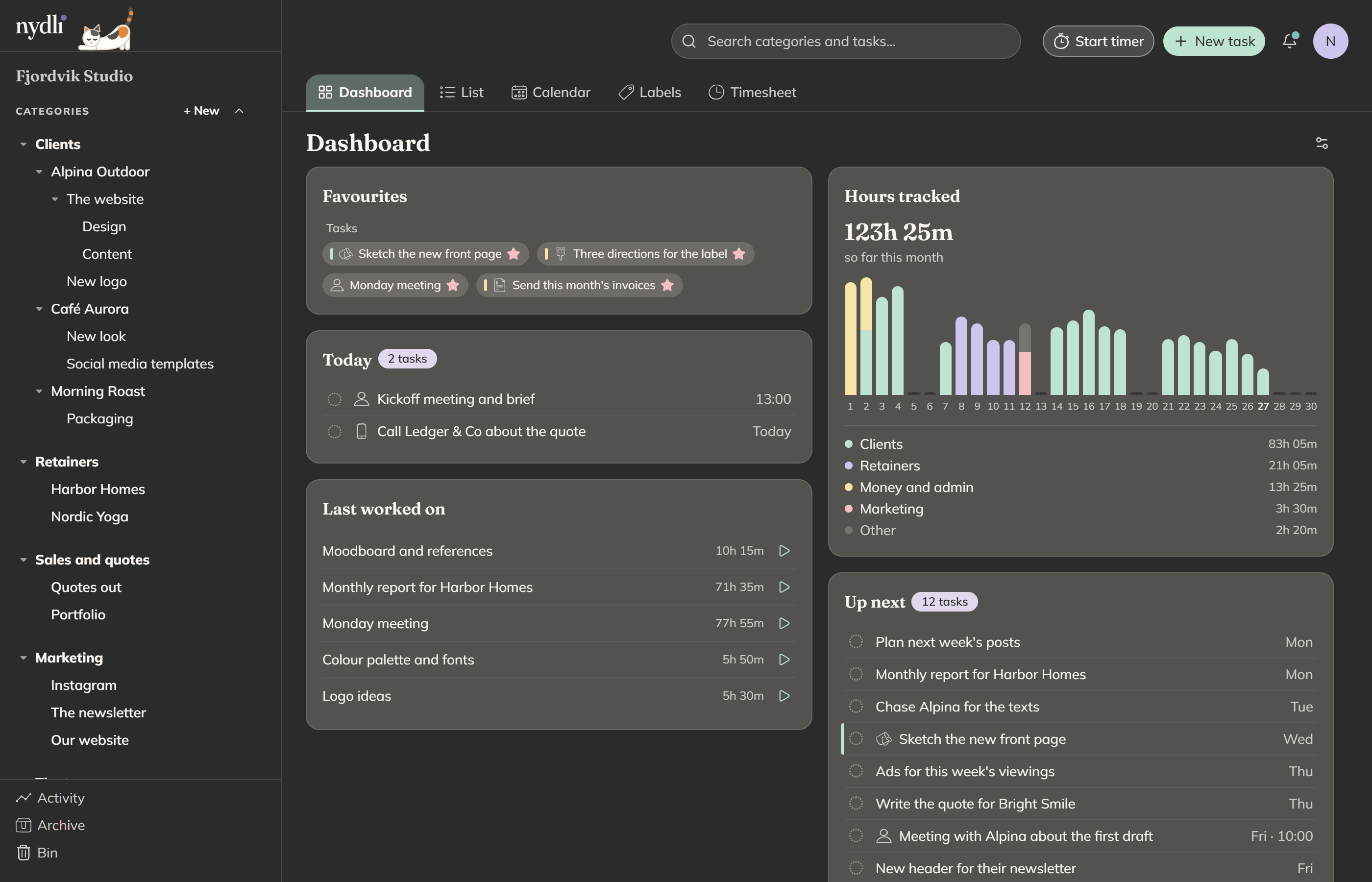
Style changes the colours and the surfaces, and leaves everything else where it is. Nydli remembers the style per workspace, the same way it does with the theme.
Whimsy is on until you turn it off
Whimsical mode gives you Nydli's hand-drawn icons and playful messages, like the confetti when you finish the last task due today. You'll see Ina, our calico, beside the wordmark when the app opens. She's in both pictures above.
If you turn it off, you get plain icons and plain messages, in both themes.
All three are in the same place
You'll find them under Settings → Appearance, next to the colours and icons you're offered when you colour a task. See Settings.