Settings
Open Settings from the account menu in the header. Everything saves as you change it, and there's no Save button.
The sections group by what they're about. Your account comes first, then this workspace, then the app itself.
Account
Profile
You set your display name, which workspace members see, and your profile picture. When you upload a picture, you pick the square you want from it.
Your sign-in address is here too. When you change it with Change email, both addresses have to say yes. First we send a link to your current address, and you use it to approve the change. Then we send a link to the new address, and you open it and enter your password. That's when the address changes, and you're signed out on your other devices. Each link works for an hour.
You'll also see invitations waiting for you here, because an invitation belongs to your account. They show up once you have opened a link we emailed to you, since that's how we know the address is yours. Until then, you can accept an invitation from the link in the email it came in.
Security
You change your password and your communication code here, and turn two-factor authentication on. You can also see the devices you're signed in on, read what has happened to the account, and delete it. See Keeping your account safe.
Subscription
You can see which plan you're on, what it costs, when it renews and how much of it you're using. Only the account owner sees it. See Your subscription.
Invoices
You get your next bill, the card that pays it, what we print on your invoices, and the invoices themselves. Account owner only, like Subscription.
Workspace
Workspaces
You see the workspaces you own or belong to, and this is where you create, archive or delete one. See More than one workspace for when a second one is worth having, and Members and roles for who can do what in it.
Templates
You fill an empty workspace with a ready-made setup, a fictional small business with a year of tracked time on it, so you can see every corner of the app with something in it. Owner and Admins only, because importing one creates labels. See Templates.
Members
You invite people, set their role and access level, and see pending invitations. See Members and roles.
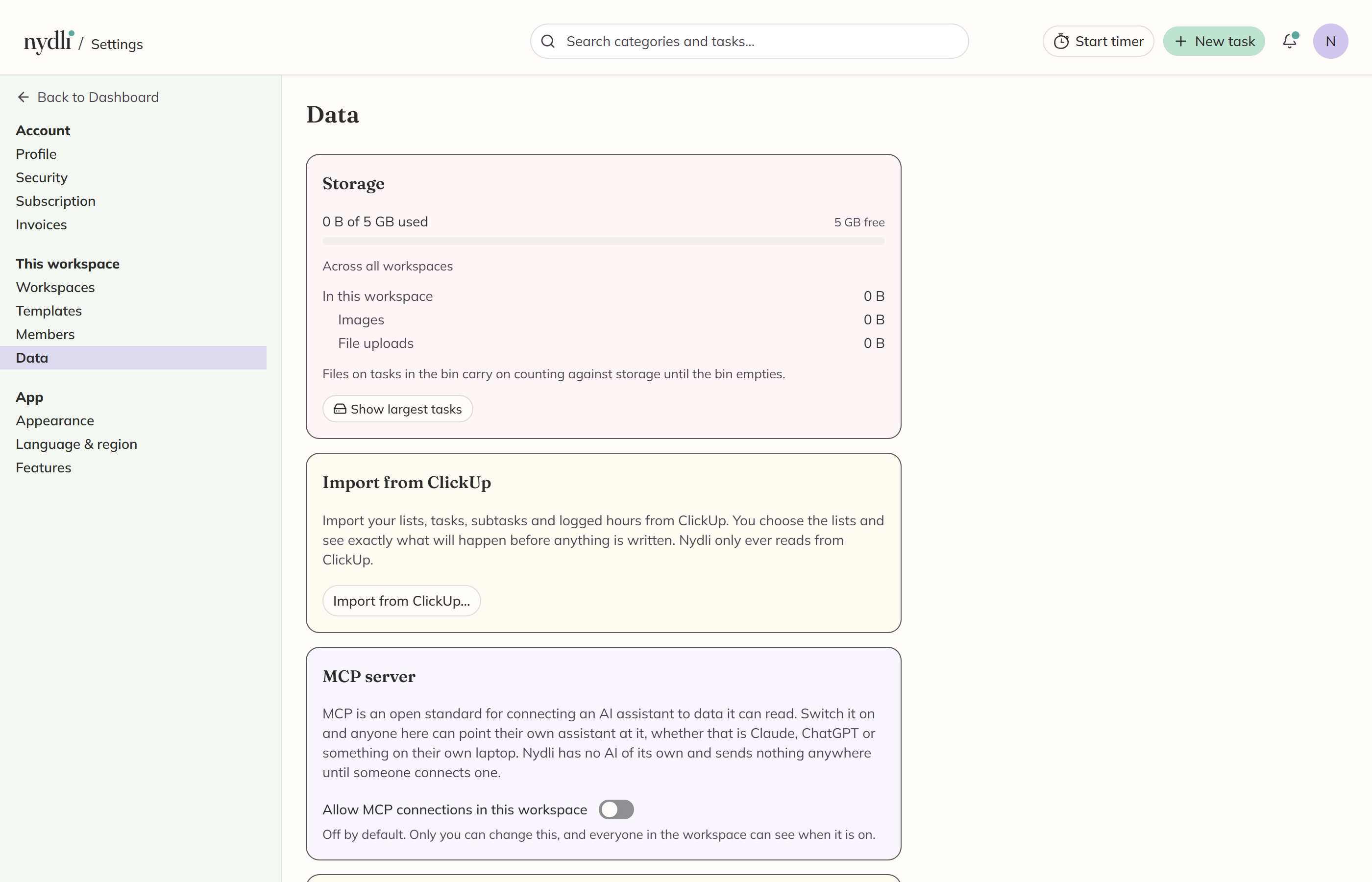
Data
Five things, all about what's in the workspace and how it gets in and out:
- Storage: how much of your account's storage is used, and what takes up the room in this workspace (below).
- Import from ClickUp: bring your lists and tasks over, with the subtasks and hours on them. See Import from ClickUp.
- MCP server: let your own AI assistant work in this workspace. Off by default. See Connecting an AI assistant.
- Download this workspace: everything in it as one zip, files and all if you want them. Owner and Admins only. See Exporting your work.
- Download your data: your profile, settings and sign-in record, which belong to you and not to any one workspace. It asks for your password first.
App
Appearance
- Theme: Light, Dark, or follow your system. System follows whichever device you're on.
- Style: Classic or Gelato. Style changes colours and surfaces, and leaves everything else where it is.
- Whimsical mode: Nydli's hand-drawn icons and playful messages. It's on by default. Turn it off if you want plain ones.
- Task colours and icons: the rows you're offered when you colour a task or pick its icon are yours to edit. See Colours and icons.
You set the theme and the style per workspace, and a new workspace starts with the ones on your account. See Dark mode and styles.
Language & region
- Language: English or Norsk (bokmål). It decides the language of the app itself, and dates, times and weeks follow the settings below it.
- Date format: five formats to choose from, previewed with today's date.
- Time format: 12-hour or 24-hour.
- Week starts on: Monday or Sunday. This also defines what "week" means on the timesheet.
- Time zone: this decides which day your time entries belong to.
- Tell me when I'm in another time zone: when your computer's clock is set to a different time zone, Nydli shows a notice at the top of the page and offers to switch. Nydli reads the time zone from your computer, so a VPN has no effect on it. If you press Keep on that notice, you answer for this trip, and Nydli asks again on the next one. If you press Never ask me again, it turns this switch off, and this is the switch that turns it back on.
Features
Time tracking on or off. If you turn it off, Nydli hides the timer, the time section in the task editor and the timesheet. We never touch your data, so when you turn it back on, everything is there exactly as it was. See Tracking time.
Stop the timer automatically when I mark a task as done is off to begin with. When you mark a task done, its timer keeps going until you stop it yourself. Turn this on if you want the timer to stop as soon as the task is done. You'll only see this switch while time tracking is on.
Your storage belongs to your account
All the workspaces you own share it, and archived workspaces count too, because we're still storing their files.
Attachments and images in notes count towards it. The preview picture for a video link counts as well, because Nydli keeps its own copy of it so your browser never has to ask the video site for it. Profile pictures don't count.
Two limits apply on top of the storage itself:
- 50 MB for a single file
- 20 files on one task
How much storage you get depends on your plan. See Solo and Team.
The meter under Data shows you how much of your account's storage you have used. The figures under it are for the workspace you're in. You get its share split between images and file uploads, and the tasks that take up the most room. That's where to start when it's time for a clear-out.
Only the account owner sees the account's figures. If you're a member of a workspace somebody else owns, you see what that workspace uses, and a note when the owner's storage is nearly full or full.
If your storage fills up
Everything you already have stays where it is. Nydli turns new files away until there's room again, and the message has a button that takes you to the storage settings. If the workspace belongs to somebody else, the message says it's the owner's storage that's full.
When you delete an attachment, you get its space back straight away. When you delete a task, you get its attachments' space back once the task leaves the Bin. Until then you can still restore it, attachments included. Nydli clears up a video link's preview picture a day or two after you take the link out of the notes.